Ever seen the message “your device isn’t compatible with this version” when trying to download or open an app on your Android phone? You’re not alone. Many users also face errors like “app version not supported”, “youtube is not supported on this device”, or “this app won’t work for your device.”
These compatibility issues usually happen when the phone runs an older Android version, the app needs newer hardware support, or the app is blocked in a specific region. This guide explains why this happens and shows simple step-by-step fixes, starting from the easiest ones.
Important note: Always back up data before any major changes. Sideloading apps or rooting a device can bring security risks like malware or even void the warranty.
Also Read: How To Change Language In Amazon App?
Why Does This Error Occur?
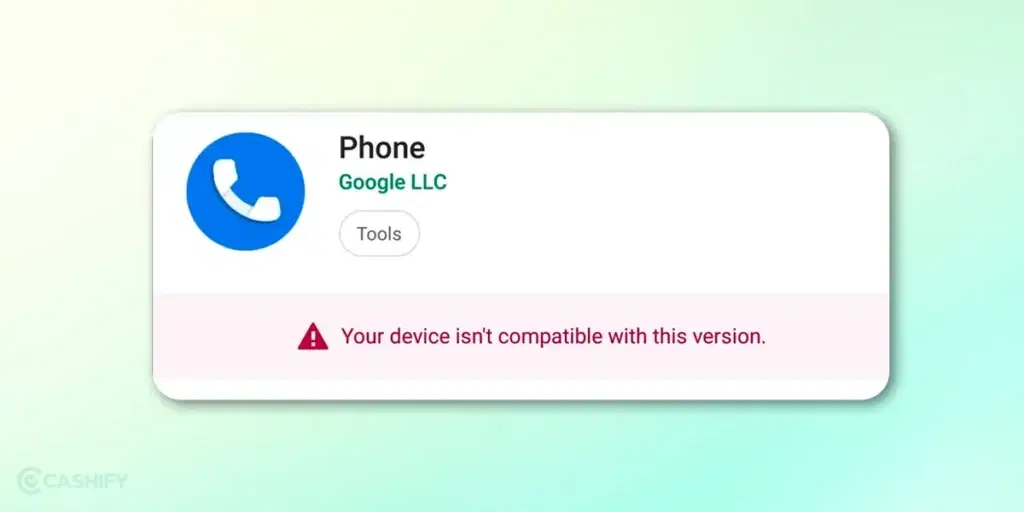
If you see “your device isn’t compatible with this version,” it means your Android phone cannot run the app you’re trying to download.
- Outdated Android version: Many apps now need newer Android versions such as Android 10 or higher for security and basic support.
- Region restrictions: Some apps are not available in certain countries due to licensing rules or local laws.
- Hardware or certification issues: Certain apps need specific hardware support. Some devices also lack full Google certification, which is common in some TV boxes or modified phones.
- Play Store glitches: Corrupted cache in Google Play Store or Google Play Services can trigger wrong compatibility messages.
Also Read: How To Find My WhatsApp Number And Change It?
You Can Try Out These Solutions
You can employ some strategies to overcome this hurdle and ensure you can enjoy your favourite apps and games on your Android device. Let’s explore these solutions in detail to enhance your smartphone experience:
1. Check for Updates:
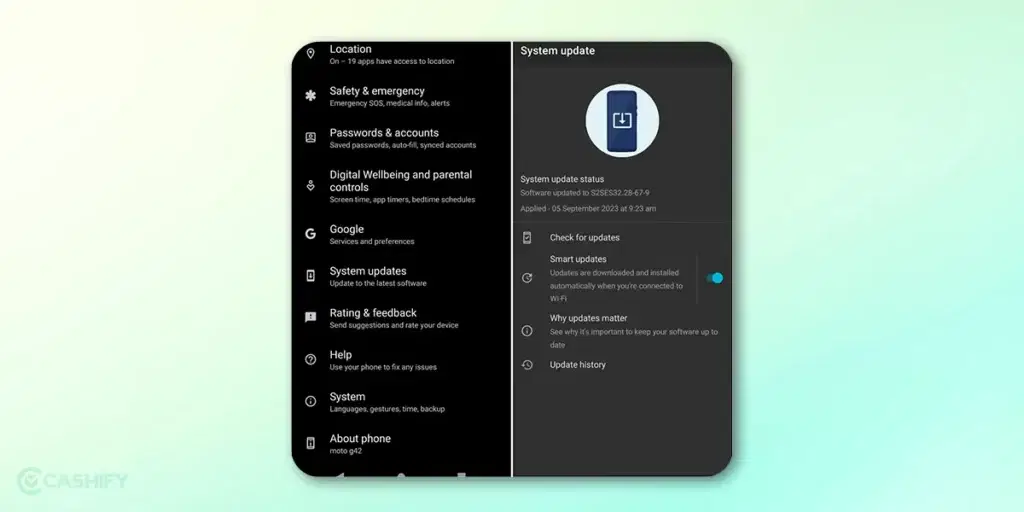
The easiest fix is usually just updating your phone’s software.
Go to Settings > System > System update (sometimes it shows as Software update, depends on your phone like Samsung or Xiaomi).
Tap Check for updates, then install anything that shows up.
After that, restart your phone and try downloading the app again.
Also Read: On-Screen Keyboard Shortcut: How To Enable Or Disable It?
2. Clear Google Play Store and Play Services Cache
Clear Google Play Store and Play Services cache to fix common app issues like download errors, stuck updates, or Play Store crashes.
- Go to Settings > Apps > Google Play Store > Storage & cache and tap Clear cache.
- If the problem continues, tap Clear data to reset the app.
- Repeat the same steps for Google Play Services, which handles background syncing and app verification.
After clearing both, restart your phone to refresh system processes. Then open the Play Store again and try downloading or updating apps. This often fixes most random Google Play-related glitches quickly.
3. Clear Cache for the Problematic App
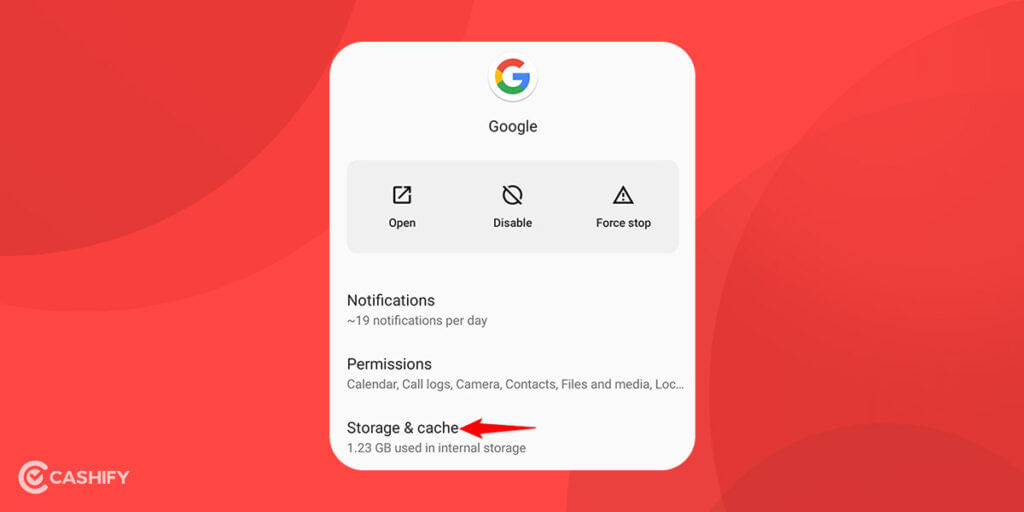
- Open your phone’s Settings and go to Apps (or “App Management”).
- Scroll through the list and select the app that’s causing trouble.
- Inside the app settings, look for Storage & cache (sometimes just “Storage”).
- First, tap Clear cache.
This removes temporary files the app has stored to load faster. It often becomes corrupted or outdated and can cause glitches, slow performance, or crashes.
If the issue still isn’t fixed, go back and tap Clear data. It removes all saved app data, settings, login information, and preferences. It restores the app to its original state as if it were freshly installed.
After doing this, you may need to sign in again and reconfigure the app. It often resolves persistent issues by giving the app a completely clean slate.
Also Read: Did You Know These 5 Hidden Features In Amazon Fire?
4. Reinstall The App
Start by removing the app from your phone completely. Long-press the app icon on your home screen or app drawer, then tap Uninstall and confirm.
Once it’s deleted, restart your phone. This helps clear any leftover background issues linked to the app.
After the restart, open the Play Store, search for the same app, and install it again fresh. Sign in if needed and set it up from scratch.
5. Uninstall Updates For System Apps
For built-in apps like YouTube, you can try rolling back the updates.
Open the Play Store, search for the app, then tap the three-dot menu on the app page and select Uninstall updates. Confirm it when prompted.
Once that’s done, the app goes back to its original version. After that, try updating it again or reinstalling it from the Play Store.
Solutions At A Glance
You can try these quick fixes to solve common Android app problems:
| Fix | What it does | When to use |
|---|---|---|
| Update phone software | Fixes system bugs and improves compatibility | Multiple apps crash or misbehave |
| Clear Play Store/Services cache | Fixes corrupted download data | Apps stuck on download/pending |
| Clear app cache/data | Fixes broken app files (data reset optional) | One app keeps crashing or won’t open |
| Reinstall app | Gives a fresh copy of the app | App is seriously broken |
| Uninstall system app updates | Rolls back buggy updates | Built-in apps like YouTube crash after update |
These methods usually fix download errors, crashes, app glitches, plus compatibility issues on Android devices.
To Summarise
Most compatibility issues can be sorted out pretty easily. A quick Android update, clearing the app cache, or reinstalling the app often fixes errors like “your device isn’t compatible with this version” or “app version not supported.”
Sometimes apps throw messages like “YouTube is not supported on this device” when the phone doesn’t meet the basic system requirements. In other cases, “this app won’t work for your device” usually shows up when the Android version or hardware is too old.
If things still don’t work, trying an older APK from a trusted source can help in some cases. If even that fails, it usually means the app has stopped supporting that device completely.
FAQs
Can an old Android phone still run newer apps?
Sometimes yes, but it depends on the app requirements. Many modern apps now need newer Android versions plus updated security support.
Does clearing Play Store cache delete apps or personal data?
No. Clearing cache only removes temporary files from Google Play Store. Your apps, photos, accounts, plus personal files stay safe.
Is it safe to install APK files manually?
Only if the APK comes from a trusted source. Unknown APK files may contain malware, spyware, or modified apps that can harm your device.
Why do some apps disappear from the Play Store on older phones?
Developers often stop support for older Android versions. Once support ends, the Play Store may hide those apps from incompatible devices.
Can low storage space cause compatibility errors?
Yes. Very low internal storage can interrupt downloads, updates, plus app installations, sometimes triggering compatibility warnings.
Will factory reset fix app compatibility problems?
A factory reset can solve software glitches or corrupted settings. It cannot upgrade old hardware or unsupported Android versions.
If you’ve just bought a new phone and don’t know what to do with your old phone, then here’s your answer. Sell old mobile to Cashify and get the best price for it. If you are planning to buy a new phone, check out Cashify’s refurbished mobile phones. You can get your favourite phone at almost half price with six-month warranty, 15 days refund and free delivery.